How to Make and Post a LinkedIn Carousel People Actually Swipe
 Written by Fernando Augusto, FounderUpdated
Most LinkedIn carousels die on slide 2. Slide 1 earned the first swipe, slide 2 repeated it, and the reader left. This guide shows how to build a carousel where every slide gives a reason to see the next one, and how to upload it as a PDF.
You will pick one idea, write the cover last, keep 8 to 10 slides, and export a clean file. Each step has example slide copy you can copy and adapt.
What a LinkedIn carousel is (and why it works)
A LinkedIn carousel is a multi-slide post, usually a document, that people swipe through in the feed. Each swipe is a small commitment. That is the point: the format pulls a reader through your argument one slide at a time, instead of hoping they read a long block of text.
It works when the swipe feels earned. It fails when slides repeat, ramble, or hide the useful part at the end.
1. Pick one idea you can finish in 8 to 10 slides
A carousel is not a blog post cut into pieces. It is one idea with a clear before and after.
Test your idea with one sentence: "After this carousel, the reader can ___."
- Too broad: "Personal branding on LinkedIn."
- Right size: "Rewrite your headline so it says who you help and how."
If the sentence needs the word "and" twice, split it into two carousels. Slide count follows from scope: one idea usually fits in 8 to 10 slides. Treat this range as a starting point, not a rule.
2. Write the body first, the cover last
Start with the middle. List the points the reader needs, in order, and give each one slide.
Rules for body slides:
- One point per slide.
- 15 to 35 words per slide. If you need more, the point is two points.
- Start each slide with the claim, then one line of proof or example.
- Cut any slide that could be deleted without the reader noticing.
Example copy, written for this post (topic: rewriting a LinkedIn headline):
Slide 3 (step): "Name who you help. 'Marketing Manager' is a title. 'I help B2B SaaS teams get demos from LinkedIn' is a reason to follow."
Slide 4 (step): "Add the how. One concrete method, tool, or result type."
Slide 5 (mistake): "Don't stack buzzwords. If a stranger can't repeat your headline back to you, it isn't working."
3. Make slide 1 a promise, not a title
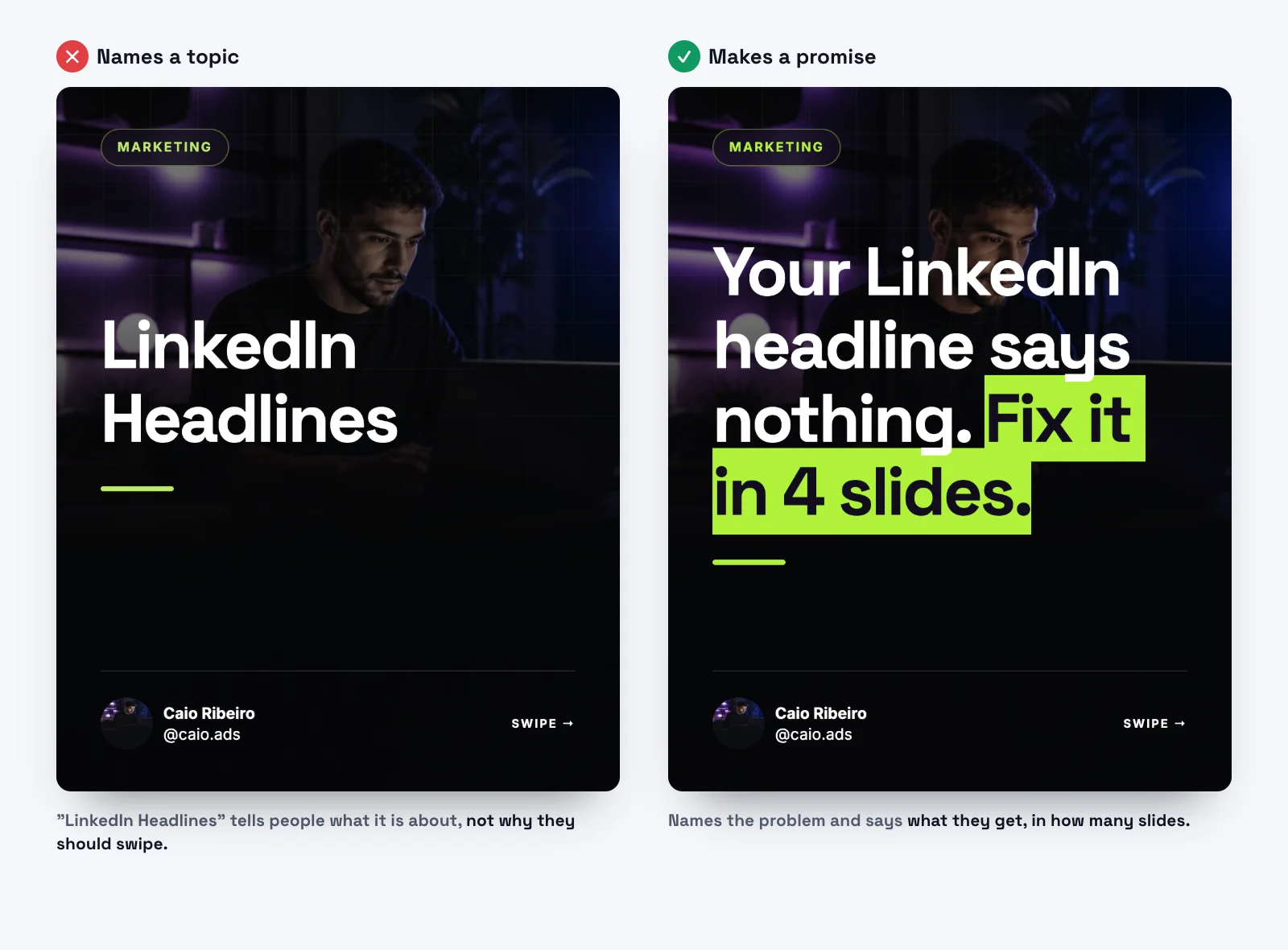
The cover has one job: get the first swipe. A topic is not a reason. A specific promise is.
| Weak cover | Stronger cover |
|---|---|
| "LinkedIn Headlines" | "Your LinkedIn headline says nothing. Fix it in 4 slides." |
| "Tips for Better Posts" | "5 edits that turned my flat posts into ones people save" |
| "Marketing Strategy" | "The 1 slide I'd delete from every B2B carousel" |
Three patterns that hold up:
- Fix a named problem ("Your headline says nothing").
- Give a number the reader can use ("4 slides", "3 edits").
- Disagree with common advice ("Stop posting daily").
Keep the cover under 12 words and readable at thumbnail size. If you cannot read it on a phone at arm's length, shrink the words, not the font.
4. Use slide 2 to raise the stakes, not repeat the cover
This is where most carousels lose people. Slide 2 should add tension or context the cover didn't have.
Example copy, written for this post:
Slide 1 (hook): "Your LinkedIn headline says nothing. Fix it in 4 slides."
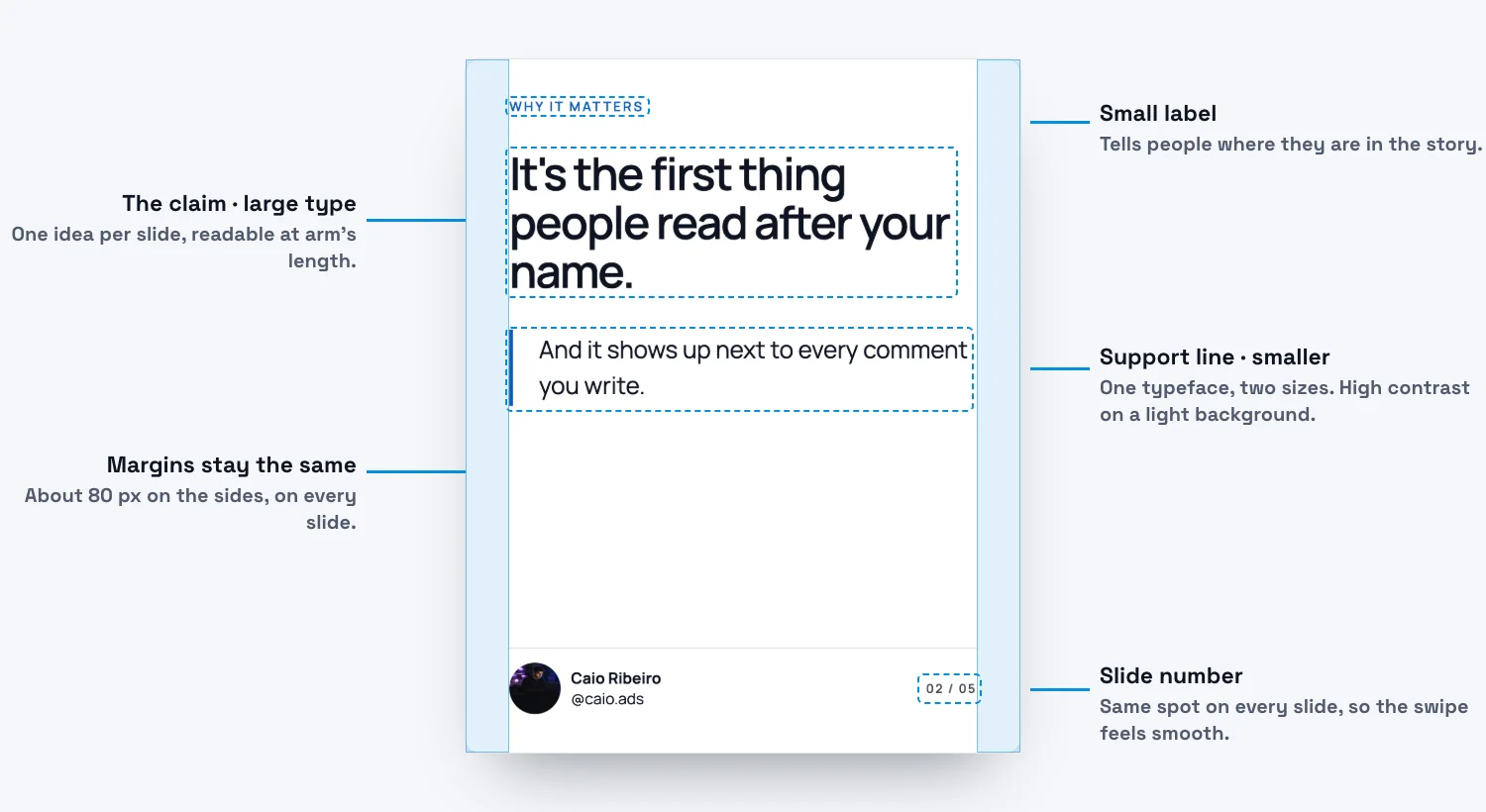
Slide 2 (tension): "It's the first thing people read after your name, and it shows up next to every comment you write."
The cover makes the promise. Slide 2 explains why it matters. Slide 3 starts delivering.
5. Design for a thumb on a phone
Most people will see your carousel on a phone. Design for that.
- One typeface, two sizes. A large one for the claim, a smaller one for the support line.
- High contrast. Dark text on a light background or the reverse. Skip text over busy photos.
- A consistent layout. The slide number, margins and logo stay in the same place so the swipe feels smooth.
- Space. If a slide feels full, it's probably two slides.
- Format. LinkedIn sets no required page size, only that every page matches. We recommend 1080 × 1350 px (portrait); the LinkedIn carousel size calculator shows the details.
6. Where the AI draft helps, and where you take over
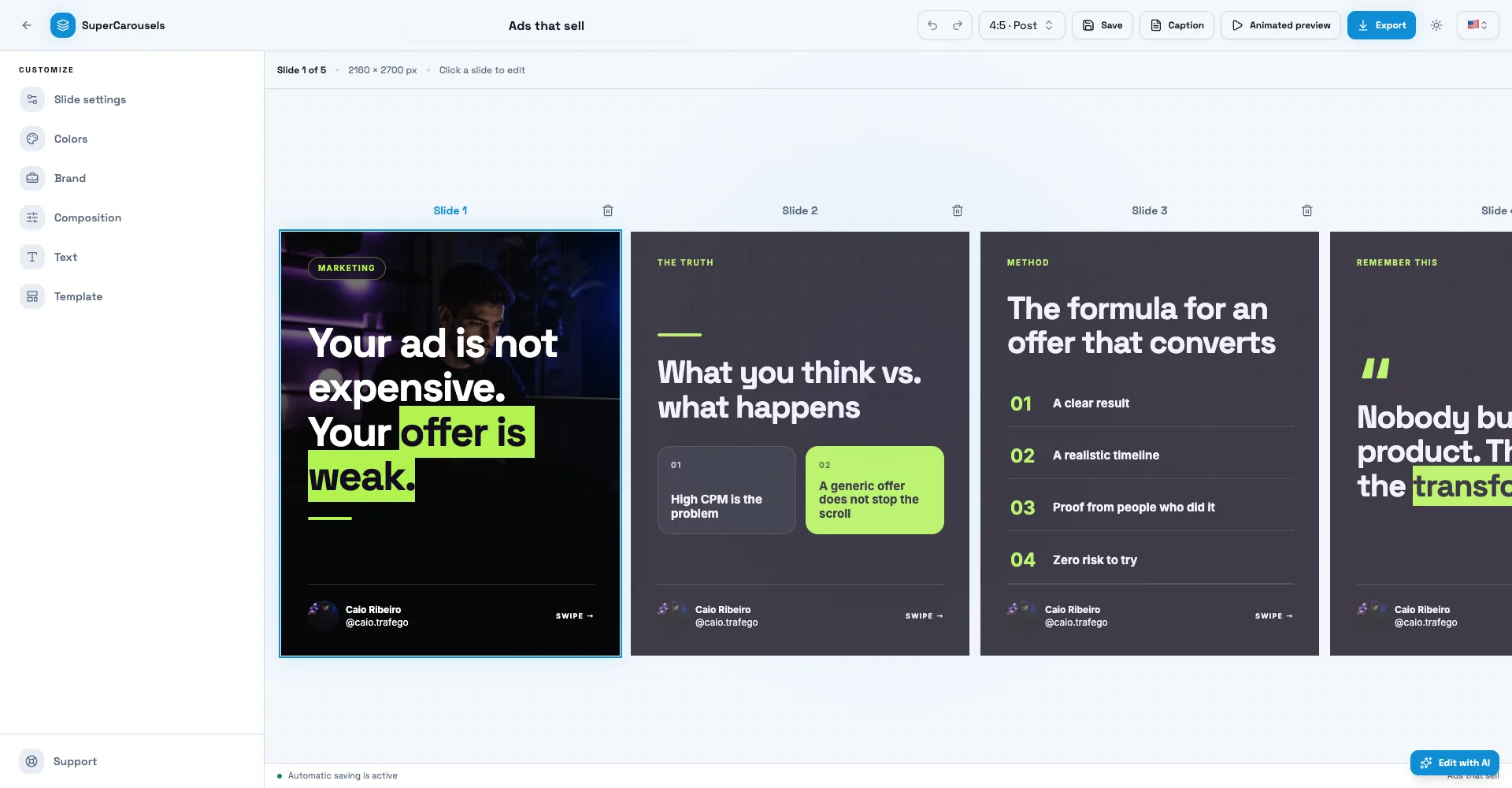
Writing ten slides from a blank page is the slow part. This is the step where an AI carousel maker like SuperCarousels earns its place: give it the idea from step 1, and it drafts the script and designs the slides, so you start by editing instead of staring at a blank slide.
What you still do yourself:
- Check every claim and number. Cut anything you can't back up.
- Rewrite slide 1 in your own words.
- Remove any slide that repeats another.
- Add one detail only you know: a client situation, a mistake, a number from your own work.
That last point is what makes a carousel read like a person wrote it.
Export: LinkedIn carousels are uploaded as a PDF document, and the SuperCarousels editor exports PDF (along with PNG and video), so you can upload the file as it comes out.
7. End on one action
The last slide should ask for one thing. Not follow, comment, share and save.
- A save prompt fits a how-to: "Save this for the next time you rewrite your headline."
- A comment prompt fits a debate: "Which slide would you cut? Tell me below."
- A link prompt fits a tool: "Try the headline generator" (see our free LinkedIn headline generator).
Then write the post text above the carousel. Two or three lines, a clear first line, no repeat of the cover.
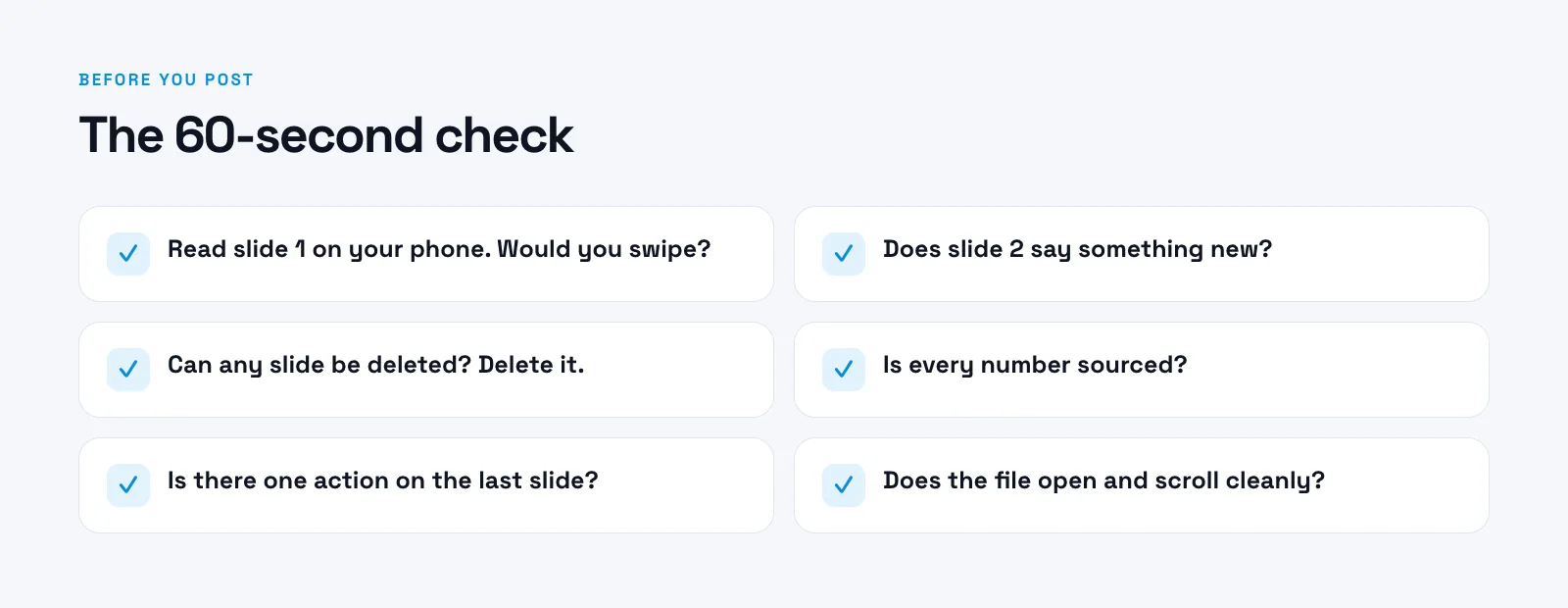
8. Run a 60-second check before you post
- Read slide 1 on your phone. Would you swipe?
- Does slide 2 say something new?
- Can any slide be deleted? Delete it.
- Is every number sourced?
- Is there one action on the last slide?
- Does the file open and scroll cleanly?
How to post a carousel on LinkedIn (upload the PDF)
A LinkedIn carousel is a document post. You export your slides as one PDF and upload it.
- Export one PDF. Every page must be the same size. LinkedIn accepts PDF, PPT, PPTX, DOC and DOCX, and recommends converting to PDF for the best quality.
- Check the limits. Up to 100 MB and 300 pages, and one document per post.
- Start a post and add the document. On the phone app, tap Post, then More, then Document. On desktop, start a post and choose the document option.
- Name the file. It shows as the document title, so make it readable.
- Write the post text. Two or three lines, a clear first line, no repeat of the cover.
- Publish, then open it on your phone to check page order and text size.
Videos and other animations inside the PDF are not supported and show as static images. LinkedIn does not set a required page size; we recommend 1080 × 1350 px. Our LinkedIn carousel size calculator has the numbers.
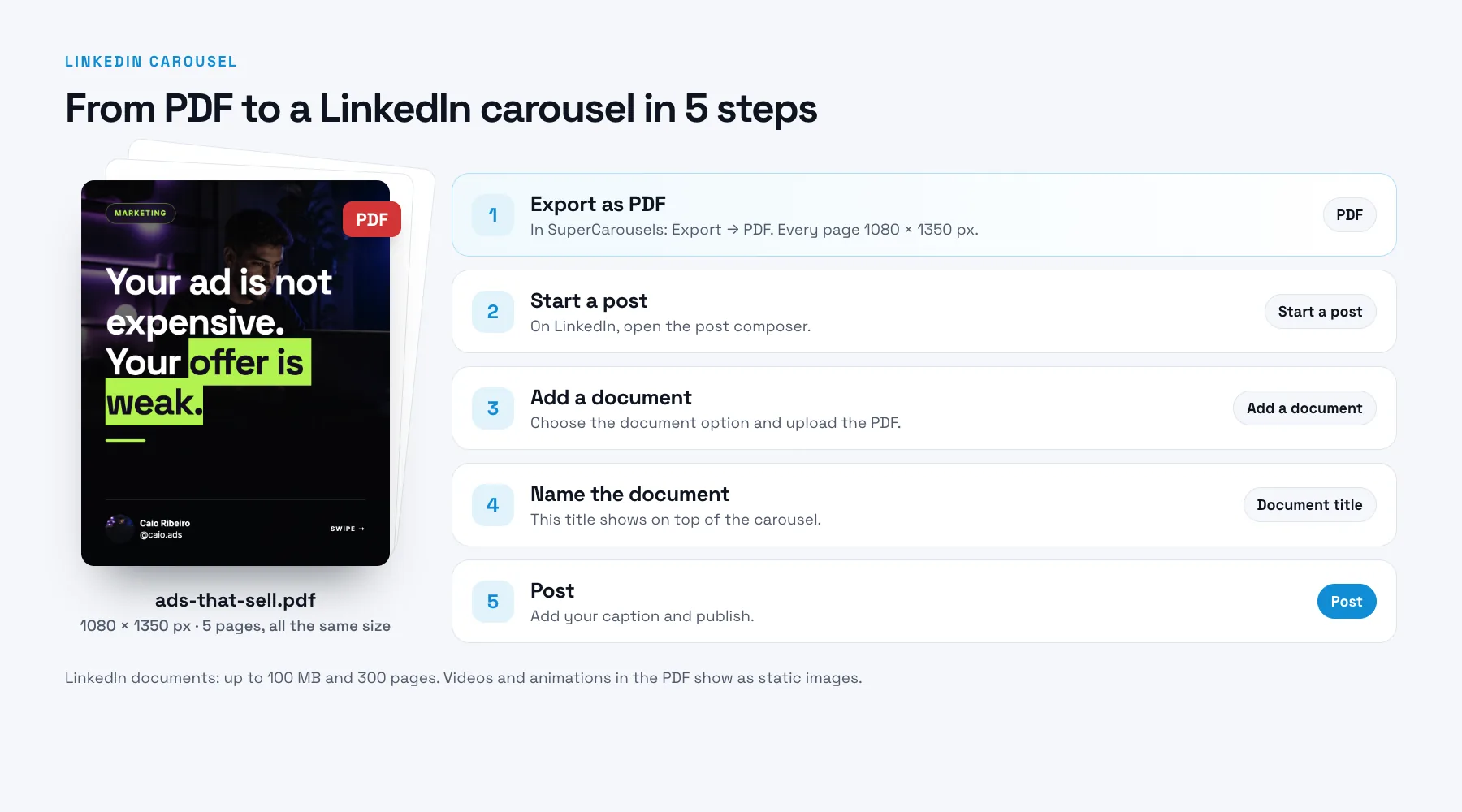
Export a 1080 × 1350 px PDF from SuperCarousels, then add it to a LinkedIn post as a document.
Common mistakes
- A cover that names a topic. Fix: promise a result.
- Slides with 60 words. Fix: split or cut.
- The best point on the last slide. Fix: move it to slide 3 or 4. Readers who leave at slide 4 still got value.
- Different layout every slide. Fix: reuse one template.
- No proof. Fix: add one real example, number or screenshot per section.
Make one this week
Pick one idea, write the body, then rewrite slide 1 three times and keep the best. If you want a first draft to edit, create a LinkedIn carousel with SuperCarousels. If your headline is the weak spot, start with the free LinkedIn headline generator.
FAQ
How many slides should a LinkedIn carousel have?
Start with 8 to 10 for one idea, and cut until each slide earns its place. LinkedIn allows up to 300 pages per document, but 8 to 10 is plenty for one idea.
What size should a LinkedIn carousel be?
Use the same size on every slide. LinkedIn sets no required size, only that all pages match. We recommend 1080 × 1350 px. See the LinkedIn carousel size calculator.
How do I post a carousel on LinkedIn?
Export your slides as one PDF, start a post, add the document, name the file and write the post text. On the phone app the path is Post, then More, then Document (LinkedIn Help). See the steps above.
How much text should go on each slide?
About 15 to 35 words, one point per slide. If a slide needs more, split it.
Can I make a LinkedIn carousel with AI?
Yes. An AI carousel generator can draft the script and slides from your idea. Review it, check the facts and add your own example before you post.
Does the same carousel work on Instagram and TikTok?
The idea and script often transfer. Size and text density need adjusting for each network.